Troubleshoot CohortDAG's environment setup
How-to · CohortDAG 0.2.9
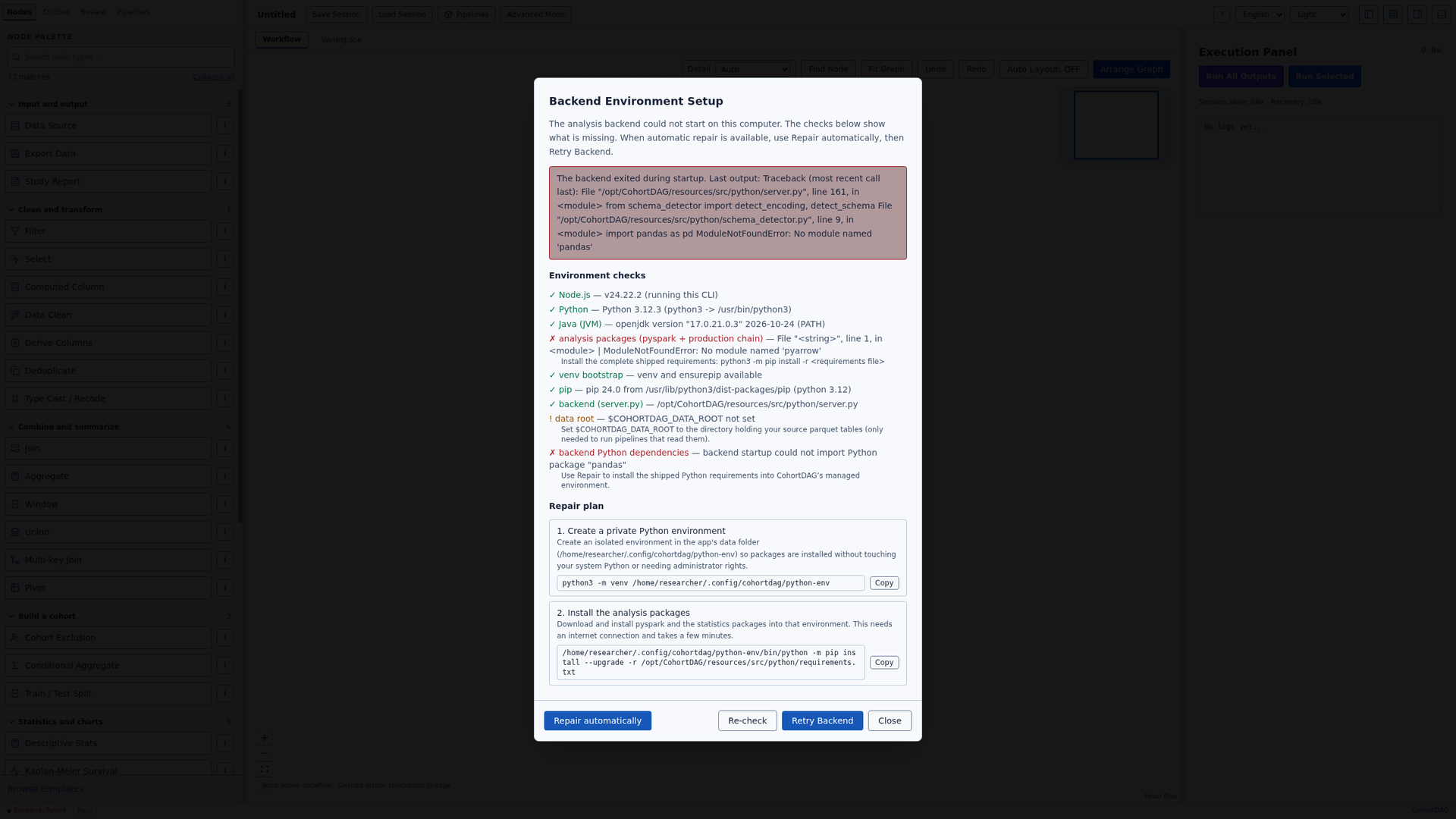
The "Backend Environment Setup" dialog shows one of these messages when CohortDAG cannot start its analysis backend, which needs Python 3, the analysis packages (pyspark among them) and Java 17 for Apache Spark. Find your message, then follow its fix. If you closed the dialog, click "Fix…" beside Backend: Failed in the status bar to open it again. In a terminal, cohortdag doctor (installed with the Linux package) runs the same checks and also starts Spark once, which can take a few minutes.
The analysis backend could not start on this computer. The checks below show what is missing. When automatic repair is available, use Repair automatically, then Retry Backend.
Cause
The analysis backend could not start, and the status bar reads Backend: Failed. On a new installation this is expected: the analysis packages are not installed yet. The red box gives the backend's own reason. In "Environment checks", ✗ marks a missing part the backend needs; ! marks an optional one, such as the data root, which does not stop it from starting.
Fix
If "Repair automatically" is shown, click it and wait for it to finish; installing the analysis packages can take a few minutes. Then click "Retry Backend". On Linux, a step that installs a system package such as Java 17 asks for your password in a system window. Steps in the "Repair plan" marked "do this yourself" are not done by the app: when a command is shown under the step, copy it and run it in a terminal, then click "Re-check"; when the step says to reopen the app, quit CohortDAG and start it again.
Repair finished. Further setup is required; review the refreshed plan.
Cause
The steps the app could run have finished, and the refreshed plan has more. Some steps can be planned only after an earlier one: the analysis packages are installed into a Python environment, so they appear once Python is present. Others are steps the app cannot do for you.
Fix
Read the refreshed "Repair plan". If "Repair automatically" is shown again, click it. For each step marked "do this yourself", follow the step as above. When no check shows ✗, click "Retry Backend".
The repair did not finish — see the log below for the reason.
Cause
A repair step stopped with an error. Common reasons are no internet connection while the analysis packages download, or a password prompt for a system package that was closed or declined.
Fix
Read the end of the repair log under the plan for the reason. Fix it (connect to the internet, or be ready to enter your password), click "Re-check", then "Repair automatically" again. A step that shows "Manual alternative" can instead be done by running that command in a terminal; then click "Re-check".
Repair cancelled.
Cause
You clicked "Cancel repair", so the remaining steps did not run. On Linux, a step that was installing a system package finishes before the repair stops.
Fix
Click "Re-check" to see what is still missing, then click "Repair automatically" when you are ready.
The environment check could not be completed. Re-check or review the backend log.
Cause
The environment check itself could not finish, so the dialog cannot list what is missing.
Fix
Click "Re-check". If the message stays, run cohortdag doctor in a terminal: it prints each check with its result and a fix for each failed one.